To make a signature in Outlook, open the signature settings for the exact Outlook version you use, create the signature, select the correct email account and set separate defaults for new messages and replies. The menus differ between new Outlook, classic Outlook, Outlook on the web, Mac and mobile, so the first step is identifying the app—not repeatedly searching for a button that belongs to another version.
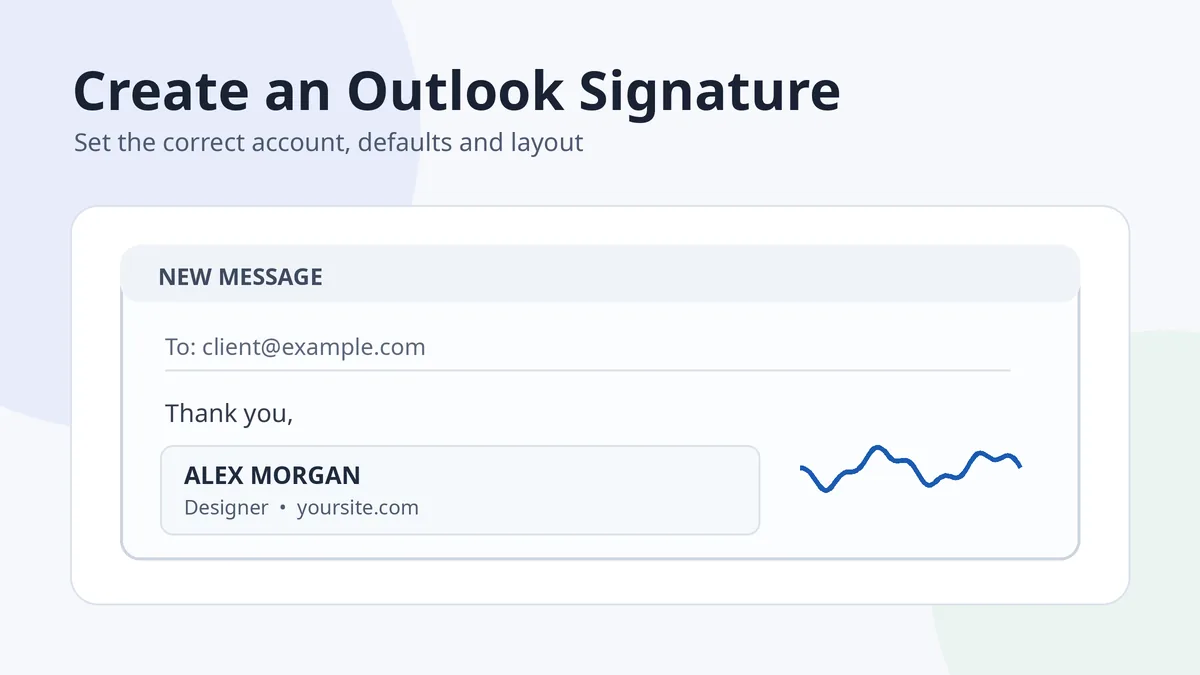
An Outlook email signature is a message footer. It is not the same as signing a Word or PDF document, and it is not a cryptographic email signature such as S/MIME.
In this guide
- Create it in your Outlook version
- Choose sensible content and layout
- Set account defaults
- Fix missing or broken signatures
Create a signature in your Outlook version
New Outlook for Windows
- Open Settings.
- Select Accounts → Signatures.
- Choose the email account.
- Select Add signature, name it and build the signature.
- Choose defaults for new messages and for replies or forwards.
- Save and send yourself a test message.
Classic Outlook for Windows
- Open a new email message.
- On the Message tab, choose Signature → Signatures.
- Select New and give the signature a clear name.
- Edit the text and formatting.
- Select the email account and defaults for new messages and replies.
- Save and test.
Outlook on the web or Outlook.com
Microsoft’s help pages currently document more than one settings path across Outlook web experiences. Depending on the interface, look under Settings → Accounts → Signatures or Settings → Mail → Compose and reply. Create the signature, enable it for the message types you want and save the settings.
Outlook for Mac
Open Outlook → Settings → Signatures, create or edit a signature, then assign it to the correct account for new messages and replies or forwards.
Outlook for iOS and Android
Open Outlook settings, find Mail → Signature, then enter the mobile signature. Microsoft also provides a per-account option. Mobile formatting can be simpler than desktop, so test the result rather than assuming the rich desktop design will reproduce exactly.
Microsoft’s current Outlook signature guide covers new and classic Outlook. Separate official instructions cover Outlook for Mac and Outlook mobile.
What to put in an Outlook email signature
| Element | Recommended use | Common mistake |
|---|---|---|
| Name | Use the name recipients know | Making the name larger than the message content |
| Role and organization | Include when relevant to the conversation | Adding a long list of departments and credentials |
| Phone or website | Use one or two useful contact routes | Repeating the email address that is already visible |
| Logo or small signature mark | Optional branding | Uploading a huge image or putting all text inside the image |
| Social links | Only profiles you actively use for the role | Adding a row of unnecessary icons |
| Disclaimer | Only when your organization requires it | Using a long legal paragraph in every casual reply |
A compact block of four to six lines is usually easier to scan than a banner. Use real text for names and contact information so it remains selectable and accessible. A handwritten mark can be a small optional accent, not the only place where your name appears.
For broader design guidance, read how to make an email signature. To prepare a transparent handwritten accent, use the signature image guide.
Set the correct account and default behavior
- Name each signature clearly. “Work,” “Personal” and “Short reply” are easier to manage than several items called “Signature.”
- Assign it to the correct account. Outlook can contain multiple addresses, and defaults are account-specific.
- Choose separate behavior for new mail and replies. A full signature may suit new messages while a short version is better for replies.
- Insert manually when context changes. A saved signature can usually be selected from the compose window.
- Test external delivery. Send to a Gmail or another non-Outlook address to check line breaks, links and image display.
Troubleshoot a missing or broken Outlook signature
| Problem | What to check |
|---|---|
| Signature does not appear automatically | Confirm the selected account and default for new messages or replies |
| Wrong signature appears | Check which account is in the From field and which default is assigned |
| Image is missing for recipients | Use a properly inserted image, keep it lightweight and test external delivery; some clients block remote images |
| Formatting changes | Simplify fonts, columns and spacing; email clients do not render complex layouts consistently |
| Desktop and mobile differ | Edit the mobile signature separately and expect fewer formatting options |
| Signature appears above quoted text | Review the reply-signature setting and compose behavior for that Outlook version |
A reliable Outlook signature is an account setting plus a simple email design. Solve both parts before adding decorative elements.
Frequently asked questions
Where are signature settings in new Outlook?
Microsoft currently directs new Outlook users to Settings, then Accounts and Signatures. Select the relevant account before creating or assigning defaults.
Why is my Outlook signature not showing on replies?
New messages and replies or forwards can have separate defaults. Check the reply setting for the correct email account.
Can I use different signatures for different Outlook accounts?
Yes. Outlook supports account-specific signatures and defaults. Name them clearly so you can also choose one manually while composing.
Can I add an image to an Outlook signature?
Yes, but keep it small and retain important information as text. Test the message outside Outlook because recipients may block or resize images.
Is an Outlook email signature the same as a digital signature?
No. The email footer is contact and branding content. A digital email signature such as S/MIME is a security feature used to sign or encrypt message data.

Add Comment