Here is how to make a Gmail signature on a computer: open Gmail, select Settings → See all settings, stay on the General tab, scroll to Signature, and choose Create new. Add your text, links or image, assign separate defaults for new messages and replies, then select Save Changes at the bottom of the page. Gmail mobile apps use a separate mobile-signature setting.
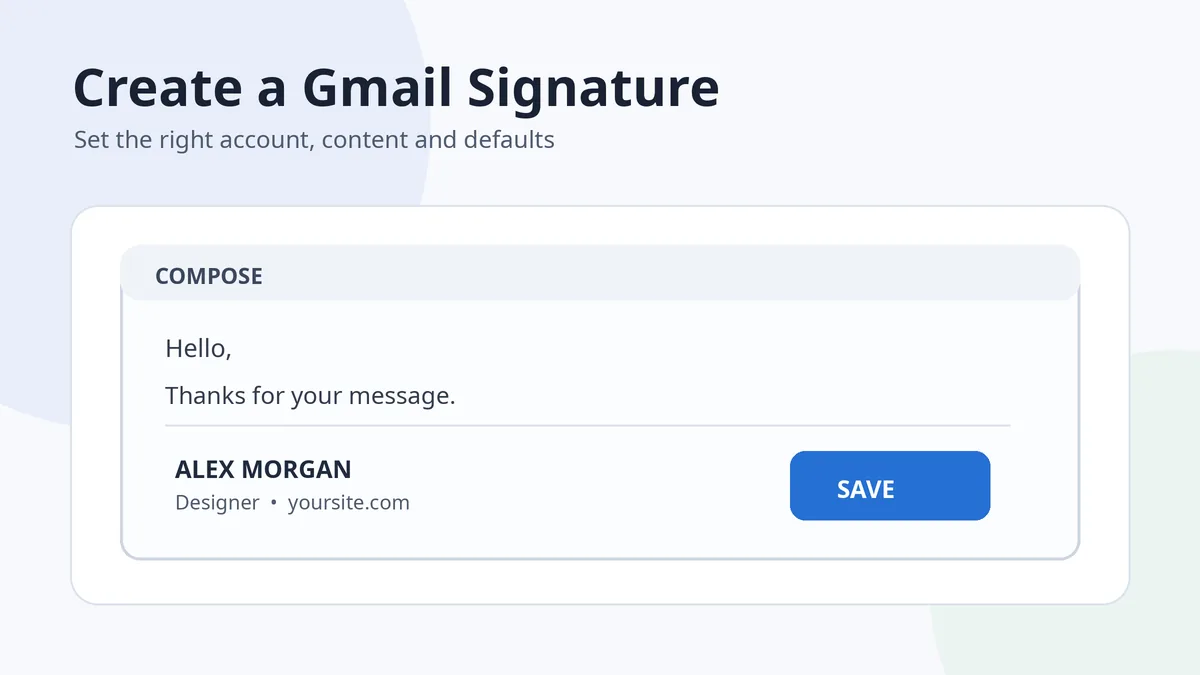
A Gmail signature is an email footer, not a handwritten document signature. It should help recipients identify you and choose the next useful action—reply, call, visit a website or view a professional profile—without overpowering the actual message.
In this guide
- Create a Gmail signature on desktop
- Choose useful signature content
- Add an image or handwritten mark
- Set mobile signatures
- Fix common Gmail problems
How to make a Gmail signature on a computer
- Open Gmail in a desktop browser.
- Select the Settings gear, then See all settings.
- On the General tab, scroll to Signature.
- Select Create new. Give the template a practical internal name such as “Work,” “Personal” or “Short reply.”
- Add and format the signature. Use real text for your name and contact details; add links or a small image only when useful.
- Choose signature defaults. Select which template appears in new emails and which appears in replies or forwards.
- Scroll to the bottom and select Save Changes.
- Send a test email. Check the result on both desktop and mobile.
Google’s current official Gmail signature guide confirms that desktop signatures can include formatted text and images, and that separate defaults can be selected for new messages and replies.
Use more than one Gmail signature when the context changes
Multiple templates are useful when one account serves different purposes. A full professional signature can appear on a first message, while a shorter version—name, role and one contact method—keeps long reply chains readable. Insert or switch a signature from the compose window when a specific message needs a different footer.
What to include in a Gmail signature
| Element | When to include it | What to avoid |
|---|---|---|
| Name | Always, using the name recipients know | Turning the name into an oversized graphic |
| Role and organization | When relevant to work or public communication | A long stack of titles and credentials |
| Phone or website | When it helps the recipient take action | Repeating every contact channel you own |
| Professional profile | When it is current and relevant | Rows of unused social icons |
| Logo or handwritten mark | As a small optional brand accent | Putting all essential information inside one image |
| Disclaimer | Only when required by policy | A long legal paragraph on every casual reply |
Keep the hierarchy simple: name first, role second, one or two contact options next. A signature that looks restrained in the editor can still become tall on a phone, especially when it contains blank lines, large images or several icon rows.
For broader layout and accessibility advice, read how to make an email signature. Gmail-specific settings should remain on this page so the two articles do not compete for the same job.
Add an image or handwritten mark to Gmail
On desktop Gmail, use the signature editor’s image control to upload a file, select one from Drive or use a public image URL. Google’s troubleshooting guidance recommends a practical signature-image size of roughly 70–100 pixels high and 300–400 pixels wide. That is a useful target, not a reason to stretch a tiny image.
- Use a lightweight file. A large logo slows email and can trigger Gmail’s signature limits.
- Keep important information as real text. Images can be blocked, fail to load or become inaccessible to screen readers.
- Use meaningful alt text where the editor allows it. A decorative handwritten mark should not carry essential contact details.
- Crop transparent images closely. Excess blank space makes the footer look misaligned.
- Test dark mode. Fine black graphics can disappear against dark backgrounds; a subtle border or adaptable mark may work better.
To prepare a clean handwritten accent, use the signature image creator or a relevant tool under /signature-tools/. A handwritten graphic is optional branding; it is not the same as digitally signing an email with a security certificate.
Create a Gmail signature on Android, iPhone or iPad
Android Gmail app
Open the Gmail app, choose Menu → Settings, select the Google Account, tap Mobile signature, enter the signature text and save. Google notes that if you do not create a mobile signature in the app, new messages can use the signature created on your computer.
Gmail app on iPhone or iPad
Open Menu → Settings. Under Compose and Reply, open Signature settings, turn on Mobile Signature, add or edit the text, then go back to save. Google documents desktop and mobile signatures separately, so always test the account and device you actually send from.
Official instructions are available for Android and iPhone and iPad.
Fix common Gmail signature problems
| Problem | What to check |
|---|---|
| Signature does not appear | Confirm a default is selected for that account and message type |
| Mobile signature differs from desktop | Check the Gmail app’s separate Mobile Signature setting |
| Image shows as a broken icon | Delete and re-upload it, or try Upload, Drive or a public URL |
| Image is too large | Resize the source before inserting; do not rely only on visual scaling |
| Wrong signature is used | Check the sending account and the default assigned to it |
| Formatting changes in replies | Simplify spacing, fonts and layout, then test an actual reply |
Google’s Gmail signature troubleshooting guide covers broken images, size problems and the available upload methods.
A useful Gmail signature answers “Who is this?” and “How should I respond?” in a few seconds—then gets out of the message’s way.
Frequently asked questions
Can I have different Gmail signatures for new emails and replies?
Yes. On desktop Gmail, choose separate signature defaults for new messages and for replies or forwards. A shorter reply signature is often easier to scan.
Can I add a picture to a Gmail signature?
Yes, in desktop Gmail you can upload an image, select it from Drive or use a public web address. Keep it lightweight and test that recipients can see it.
Why does my Gmail mobile signature not match the desktop version?
The Gmail app has a separate Mobile Signature setting. Review it for the specific account, or disable it when you want the desktop signature behavior described by Google.
What size should a Gmail signature image be?
Google’s troubleshooting guidance recommends about 70–100 pixels high and 300–400 pixels wide as a practical range. Use the smallest dimensions that remain clear.
Is a Gmail signature the same as a digital signature?
No. A Gmail signature is an email footer. A cryptographic email signature or document digital signature is a separate security mechanism.

Add Comment