Private browser-based tool for Your-Signature.com
Signature Cleaner & Transparent Signature PNG Maker
Upload a photo or scan of your handwritten signature, remove the paper background, improve ink clarity, crop extra space, and download a clean transparent signature PNG.
Advanced cleaner controls
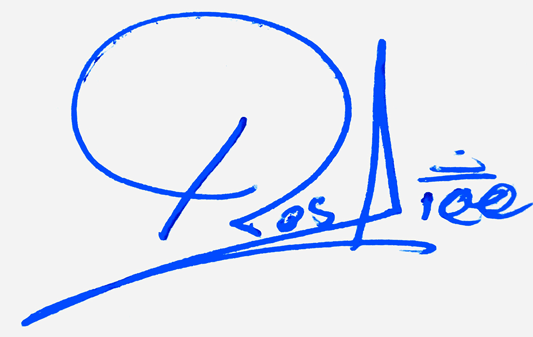
Clean your handwritten signature photo and turn it into a transparent signature PNG. This free signature cleaner is made for signatures written on paper, scanned signatures, and mobile photos where you need to remove the paper background, improve the ink, crop empty space, and download a reusable signature image.
Clean a Handwritten Signature and Make It Transparent
A signature photo usually has more than just ink. It may include white paper, grey shadows, uneven lighting, camera noise, and extra space around the writing. This tool focuses on one clear job: extracting the signature from the photo and creating a clean transparent PNG that can be placed on a document, design, certificate, or personal graphic without a white box around it.
Unlike a general background remover, this tool is designed around signature images. It looks for pen strokes, separates the ink from the paper, improves faded lines, and can crop the empty area around the signature so the final PNG is easier to use.
How to Use the Signature Cleaner PNG Maker
- Write your signature on clean white paper using a blue or black pen.
- Take a clear mobile photo or scan the paper.
- Upload the JPG, PNG, or WebP image into the tool.
- Tap Clean Signature to remove the background and enhance the ink.
- Use advanced controls only if the paper has shadows or the ink is too light.
- Download the final file as a transparent signature PNG.
Best Photo Tips for a Cleaner Signature PNG
The cleaner your original photo is, the better your transparent PNG will look. Place the paper near a window or under soft light. Avoid harsh shadows from your hand or phone. Keep the camera straight above the paper, and make sure the signature is in focus. A sharp image with clear contrast between ink and paper will produce a cleaner edge.
Use Blue or Black Ink
Blue and black ink are easiest to separate from paper. Very light pencil marks, yellow paper, or low-contrast ink may need stronger background removal settings.
Leave Space Around the Signature
Do not crop the photo too tightly before uploading. Leave a little space around the signature so the tool can detect the paper color and crop the result cleanly.
Avoid Folded or Textured Paper
Fold lines, stains, printed lines, or heavy texture can be mistaken for ink. Plain white paper gives the best transparent signature PNG.
What Makes This Signature Cleaner Different?
Many background removers are built for people, products, or general photos. A signature has a different shape: thin lines, loops, uneven pressure, and sometimes faded strokes. This tool is made for that exact use case. It gives you signature-specific controls such as ink enhancement, transparent PNG output, auto-crop, and optional blue or black ink recoloring.
Transparent Signature PNG vs White Background Signature
A white background signature is easier to create, but it often leaves a visible white rectangle when placed on a colored document or design. A transparent signature PNG keeps only the ink visible. This makes it more flexible for certificates, profile graphics, forms, simple document layouts, and personal branding visuals.
When Should You Use a Transparent Signature PNG?
- When you need a clean signature image without a white box
- When placing a handwritten signature on a certificate or design
- When adding a signature image to a simple document layout
- When creating a personal watermark or name mark
- When saving a scanned signature as a reusable PNG file
Privacy: Your Signature Is Processed in Your Browser
Your handwritten signature is personal. This tool is designed to process the image in your browser, which means the cleaning step does not need to upload your signature photo to our server. You choose the image, clean it on your device, and download the final PNG.
Advanced Controls Explained
Background Removal
Use soft removal for clean white paper, auto for most mobile photos, and strong removal when the image has grey shadows or uneven lighting.
Ink Enhancement
Use natural if you want to keep the original pen look, clear for a balanced clean signature, and dark if the signature is faded or too light.
Ink Color
You can keep the original ink or convert the result to blue or black. This is useful when a photo has a color cast or the ink looks uneven.
Auto-Crop
Auto-crop removes empty transparent space around the signature so the downloaded PNG is easier to place in a document or design.
Common Mistakes to Avoid
- Uploading a blurry signature photo
- Taking a photo in low light
- Using paper with lines, stains, or heavy texture
- Writing with very light ink or pencil
- Cropping the signature too tightly before upload
- Using the strongest cleaner setting when the paper is already clean
Frequently Asked Questions
What is a transparent signature PNG?
A transparent signature PNG is an image file where the paper background is removed and only the signature ink remains visible. It can be placed on different backgrounds without showing a white box.
Can I remove the background from a scanned signature?
Yes. Upload a scanned signature or a clear mobile photo, clean the paper background, and download the result as a transparent PNG.
Does this tool work with blue ink?
Yes. The tool works with blue and black ink. You can also keep the original color or convert the cleaned signature to blue or black.
Does the tool upload my signature to the server?
The cleaner is designed to process the image in your browser. Your signature photo does not need to be uploaded to the server for the cleaning step.
Which image format should I upload?
You can upload JPG, PNG, or WebP. For best results, use a sharp image with good lighting and clear contrast between the ink and the paper.
Why does my signature still have grey marks?
Grey marks usually come from paper shadows or low light. Try the strong background removal setting, increase ink enhancement, or retake the photo in better lighting.
Can I use this PNG as a legal signature?
This tool creates a signature image file. For legal, official, or platform-specific signing, always follow the rules of the document provider, organization, or signing platform.