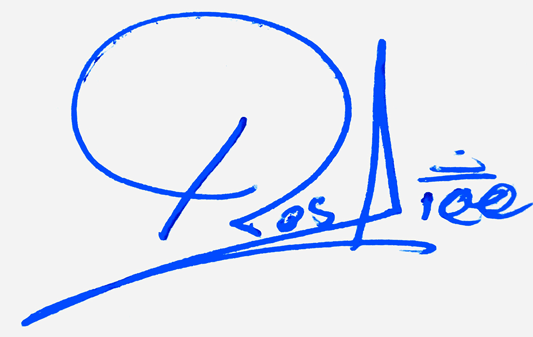
Private handwritten signature pad for Your-Signature.com
Draw Signature Online
Draw your handwritten signature with your finger, mouse, touchpad, or stylus and download a clean transparent PNG signature image.
Advanced options
Draw your handwritten signature online with your finger, mouse, touchpad, or stylus. This free signature pad lets you create a clean signature image and download it as a transparent PNG, so you can place it on simple documents, forms, graphics, or personal name designs without a white background box.
Draw Your Signature Online for Free
A drawn signature feels more personal than a typed signature because it follows your own hand movement. With this online signature pad, you can draw your signature directly on the screen, adjust the pen style, choose blue or black ink, and download a clean PNG image in seconds.
This tool is made for people who want a quick handwritten signature image. You do not need Photoshop, a scanner, or design software. Just draw, preview, and download your signature image.
How to Use the Draw Signature Online Tool
- Use your finger, mouse, touchpad, or stylus to draw your signature in the signature box.
- Choose your ink color. Blue ink gives a natural handwritten look, while black ink looks formal and clean.
- Adjust the pen thickness if you want a thinner or bolder signature stroke.
- Use Undo or Redo if you want to correct the last stroke.
- Press Clear if you want to start again.
- Download your signature as a transparent PNG image.
Why Use a Draw Signature Tool Instead of Scanning Paper?
Scanning or photographing a paper signature often creates shadows, grey background, uneven lighting, and extra white space around the signature. A draw signature tool gives you a cleaner signature image from the start. You can draw directly on your phone or computer and download a transparent PNG without editing the background manually.
If you already have a paper signature photo and want to clean it, use a signature cleaner tool. If you want to create a fresh signature directly on screen, this draw signature pad is the faster option.
Download Your Signature as a Transparent PNG
A transparent PNG signature does not have a white box behind it. This makes it easier to place the signature over a document line, a light form, a name card, or a simple graphic. The transparent background helps the signature look like it was placed naturally on the page.
You can also use a white background option if you need a simple image for preview, sharing, or practice. For most document-style uses, transparent PNG is the better choice.
Use Your Signature in Word, PDF, and Google Docs
After downloading your signature PNG, you can insert it into common document editors as an image. In Word or Google Docs, use the image insert option and resize the signature to fit the signature line. In PDF editors, choose the image or signature option and place the PNG where needed.
This tool creates a signature image. For legal or official signing requirements, always follow the rules of the document platform, organization, or country where the document will be used.
Privacy: Your Signature Is Processed in Your Browser
Your drawn signature is created on your device inside the browser. The drawing process does not require an account, email address, or upload. You can draw and download your signature image without sending a paper signature photo to a server.
For extra privacy, clear the canvas after downloading if you are using a shared device.
Best Settings for a Natural Handwritten Signature
Use Blue or Black Ink
Blue ink gives a realistic handwritten look, especially when the signature is used on light backgrounds. Black ink looks formal and works well for clean documents and simple forms.
Choose Medium Pen Thickness
A very thin stroke may look weak after resizing, while a very thick stroke can look heavy. Medium thickness usually gives the best balance for mobile and desktop use.
Draw Slowly on Mobile
When drawing with your finger, move slowly and keep your hand steady. A slower stroke usually creates a smoother and more natural signature line.
Leave Space Around the Signature
Keep a little space around your signature while drawing. This helps the tool crop the final PNG neatly without cutting off loops, underlines, or ending strokes.
Tips for Drawing a Better Signature on Screen
- Turn your phone sideways if you need more writing space.
- Use a stylus for better control if available.
- Keep the first letter clear and confident.
- Use one simple underline or ending stroke instead of too many decorations.
- Try two or three versions before downloading the final signature.
- Use Undo instead of clearing the whole canvas if only the last stroke is wrong.
Common Mistakes to Avoid
- Drawing too fast and creating shaky strokes.
- Using a pen stroke that is too thick for the name.
- Making the signature so small that it loses quality after resizing.
- Drawing too close to the edge of the canvas.
- Using too many loops or underlines that make the signature hard to recognize.
Drawn Signature vs Typed Signature
A typed signature is created from a font. It looks clean, but it may not feel personal. A drawn signature follows your own hand movement, so it can look more natural and unique. If you want quick signature ideas, use a handwritten name signature generator. If you want your own hand movement, use this draw signature tool.
Frequently Asked Questions
What is a draw signature online tool?
A draw signature online tool is a browser-based signature pad that lets you draw your handwritten signature with a finger, mouse, touchpad, or stylus and download it as an image.
Can I draw my signature on mobile?
Yes. The tool is designed for mobile screens, so you can draw your signature with your finger on iPhone, Android, tablets, or other touch devices.
Can I download my drawn signature as a transparent PNG?
Yes. You can download your drawn signature as a transparent PNG image, which is useful when you want to place the signature over a light document or form without a white background box.
Does this tool save my signature?
The signature is created in your browser. You can download it to your device, clear the canvas, or refresh the page when you are done.
Which ink color should I use?
Blue and black are the best choices. Blue looks more like a real pen signature, while black gives a clean and formal look.
Can I use the signature in Word or Google Docs?
Yes. After downloading the PNG, insert it as an image in Word, Google Docs, or another editor and resize it to fit your document.
Can I use the signature in a PDF?
You can use the downloaded PNG in PDF editors that allow image insertion or signature image placement. For official or legal documents, follow the rules of the platform or organization receiving the document.
What is better: drawing a signature or typing a signature?
A drawn signature is more personal because it follows your own hand movement. A typed signature is faster and cleaner but usually looks more like a font-based design.
Why does my drawn signature look shaky?
Shaky signatures usually happen when the finger or mouse moves too quickly. Try drawing slowly, use medium pen thickness, and use Undo for small mistakes.
How do I make my signature look professional?
Keep the first letter strong, connect the main letters smoothly, avoid too many decorations, and choose a simple underline or ending stroke if needed.